
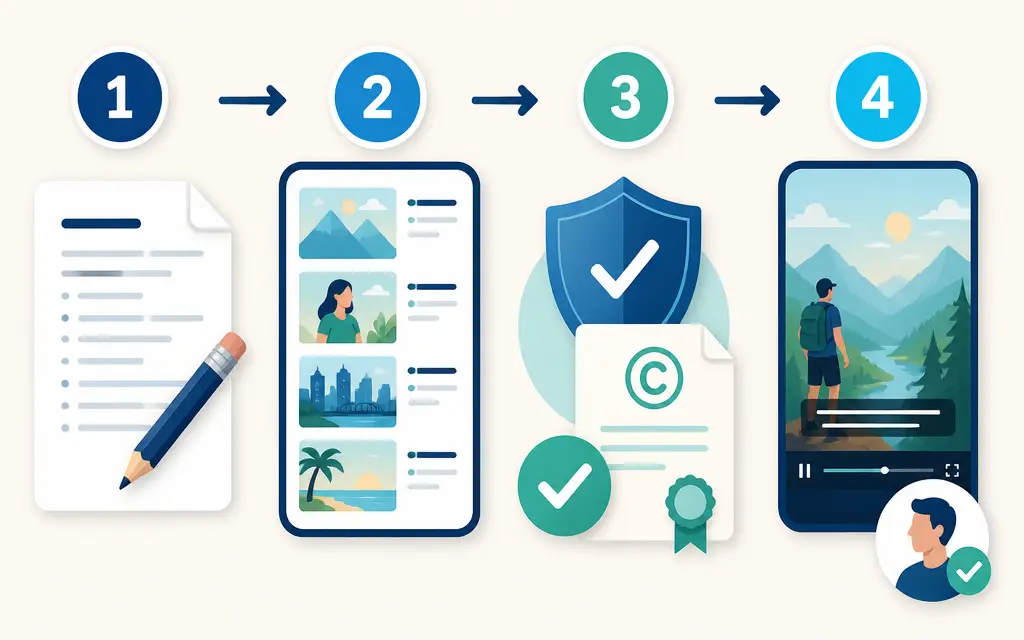
Review the script first to lock the message and scene order, then check every image against the scene it supports. Finish by viewing the script and images together for accuracy, rights, subtitle readability, and transition timing.
AUTOVID lets you create a script from a topic or source text you have the right to use, then review generated scripts and images before video generation. Treating the script as the reference helps prevent unnecessary image swaps and keeps each scene focused on the same message.
Set one sentence as the review standard
Your review standard is one sentence stating who the video is for, what it must communicate, and what action it requests. Use that sentence to reject lines and visuals that are appealing but unrelated to the purpose.
Also note the Shorts format and likely viewing conditions. Mark subjects that must remain visible, wording to avoid, and product names or figures that require verification so the script and images can be judged by the same standard.
Review the message and job of each script scene first
Review the script in this order: opening, main explanation, and closing action. Confirm that the opening states the question or problem immediately, each scene has one job, and the final request follows naturally from the explanation.
Read the script aloud, shorten long lines, remove repetition, and compare factual statements with official material. AUTOVID starts with a topic or source text the user is permitted to use, presents a draft for revision, and proceeds to a formal script after approval, so verify permission for the source and any quotations at this stage.
Match images to the approved script scene by scene
An image should replace or support what a scene says, not introduce a new claim. For each scene, check whether the key subject and action in the script are visible and whether changes in people, products, or color between images make the meaning harder to follow.
After AUTOVID generates scene images in bulk, a particular scene can still be replaced with media you own or a regenerated AI image. When using outside material, check its current license and attribution requirements yourself, and replace generated visuals that could be mistaken for a real product screen or event with neutral imagery.
Review the finished result with script and images together
For the final review, move through the script and images in scene order. Check that the spoken topic changes when the image changes, subtitles do not cover an important subject, and voice, captions, and visuals do not give conflicting information.
AUTOVID's workflow lets you check BGM volume, voice speed, and a chosen template before video generation. Review the finished video along with its title, description, tags, and thumbnail, then make the final upload decision yourself.
Frequently asked questions
Do I need to rewrite the script when an image does not work?
Replace the image if it alone fails to support the script. If many images are difficult to match, check whether the script divides scenes clearly enough.
Can I use placeholder images to check scene order?
Yes. Use placeholders to test composition and transitions, then verify usage rights and script alignment again before final generation.
Should I watch the full result even when the Short is brief?
Yes. A scene-by-scene review can miss subtitle overlaps, transition timing, and inconsistencies that only become clear across the complete video.